

This is an all-new version of Vehicle Simulator that introduces full Webhook support for simulated vehicles, continued access to these vehicles via the Vehicle API, including vehicle commands, as well as granular control over nearly every vehicle signal available through the Smartcar platform. For legacy simulator documentation, click here.
1. Create a simulated vehicle
Choose a powertrain type
Select from BEV, ICE, HEV, or PHEV. The available vehicle data signals you can configure will vary based on the powertrain type you choose.Give it a name
The name you provide will also be reflected in the vehicle’s state within theVehicleIdentification.Nickname signal.
Optional: create without connection
Optionally create the simulated vehicle in a disconnected state. Learn more about simulated vehicle connections.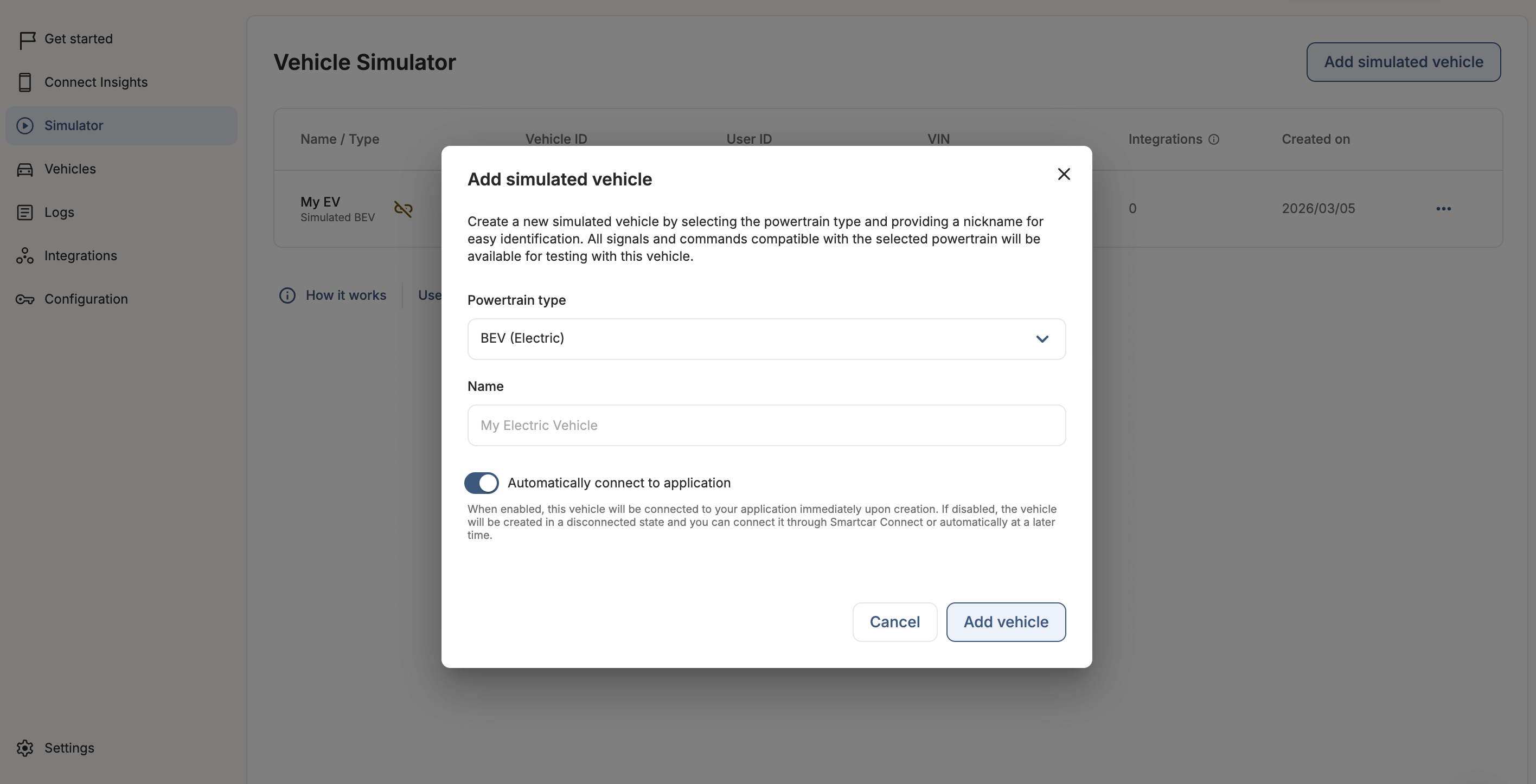
Your simulated vehicle is now connected
Once created, the vehicle is fully connected to your Smartcar application. You can immediately begin making API requests and commands to the vehicle, or continue on to subscribing the vehicle to an integration. See Accessing a simulated vehicle for how to authenticate your requests.- All compatible permissions are granted by default
- You can edit granted permissions later in the vehicle configuration
- Simulated vehicles will appear in your connections and logs with
Simulatedas the make and the chosen powertrain type as the model, eg:2023 Simulated BEV.
Accessing a simulated vehicle
Simulated vehicles are accessed through the Smartcar API exactly like live vehicles.- Application-level (M2M) tokens (recommended): Query and send commands to your simulated vehicles using your application’s access tokens, the same way you access live vehicles. See API Authentication Setup to get started.
- Per-vehicle (opaque) tokens: If your integration uses the OAuth 2.0 authorization code flow, connect the simulated vehicle with
response_type=codeand a configured redirect URI to receive an authorization code you can exchange for a per-vehicle access token. See How to Get an API Access Token.
Connecting a simulated vehicle does not issue a per-vehicle access token automatically. Access it with your application-level (M2M) tokens, or use the authorization code flow above if your integration specifically needs per-vehicle tokens.
2. Subscribe the vehicle to a webhook
Choose a webhook
Subscribe the simulated vehicle to one of your existing webhook integrations. If you don’t have a webhook integration yet, create your first integration.Simulated vehicles are not included in the webhook auto-subscription feature. You must manually subscribe simulated vehicles through the Simulator dashboard, even if auto-subscription is enabled for one or more of your integrations.
Receive the first delivery
After subscribing the vehicle to a verified and enabled webhook integration, you will receive your first payload within a few minutes.3. Configure the vehicle state
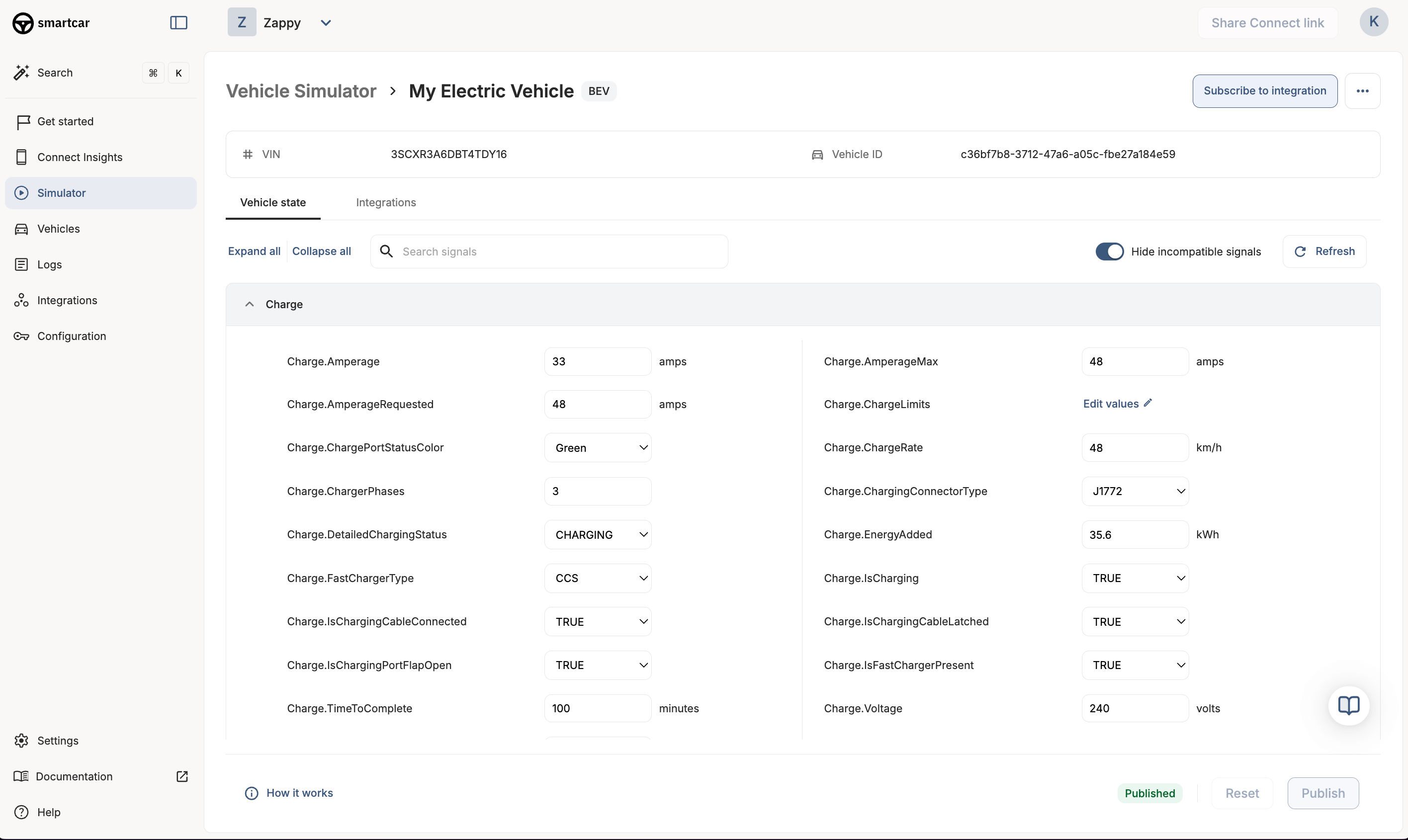
You control the current state of each vehicle data signal. Simulated vehicle state changes are entirely user-driven. All powertrain-type compatible signals are enabled for configuration by default.The Simulator is designed for logic testing with simulated vehicle data. Actual signal compatibility for a specific OEM brand can be found in the Compatibility Matrix.
Vehicle signals
Control the state of each vehicle data signal in the simulated vehicle’s configuration tab. You can edit one or many signals at a time. Click Publish to store the vehicle’s updated state. This state will be used in subsequent webhook payloads or API requests. If the published changes include a signal that is set as a trigger in your webhook integration, a new vehicle state or error event will be delivered to your application.Vehicle commands
Simulated vehicles support the following API commands:- Set charge limit
- Start and stop charge
- Open and close the charge port door
- Lock and unlock
- Send destination
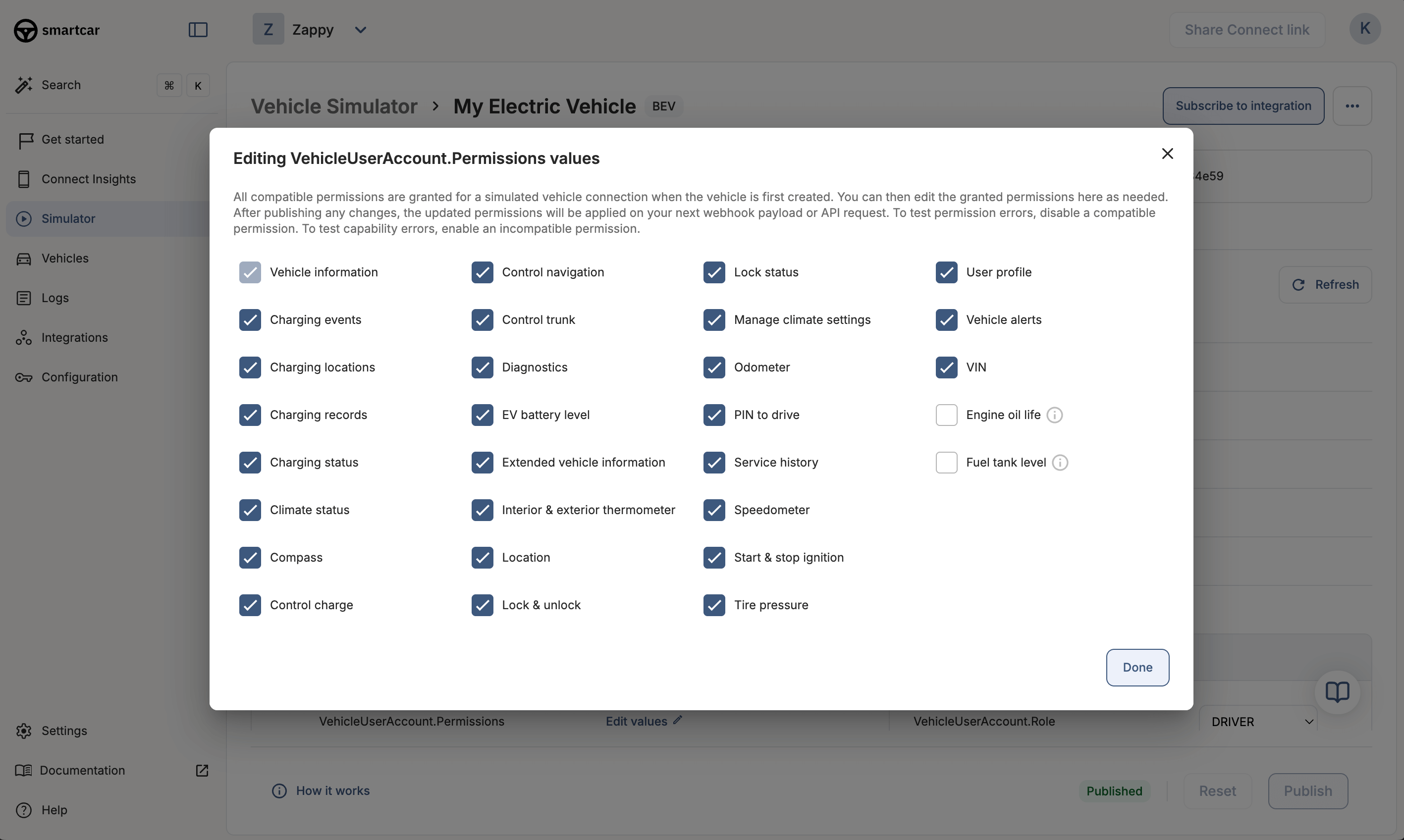
Permissions
Simulated vehicles are granted all compatible permissions by default based on the chosen powertrain type. You can edit granted permissions under theVehicleUserAccount.Permissions signal in the Vehicle State panel.
4. Test you webhook integrations
Test your webhook integrations by configuring and publishing the vehicle state in different scenarios. Each set of published changes that includes a webhook trigger signal will deliver a webhook payload to your integration.You can view logs for simulated webhook payloads and API requests in the Dashboard Logs with the tables filtered to
simulated mode.5. Test error states
You can configure your simulated vehicle’s state to recreate error scenarios for testing. Examples:- Uncheck a permission in
VehicleUserAccount.Permissionsbefore triggering a webhook payload to receive aPERMISSIONSerror - Set the simulated vehicle’s
Transmission.GearStatetoDRIVEbefore making aPOST /securitylock request to receive aVEHICLE_STATE:IN_MOTIONerror
Simulated vehicles do not have rate limits or API command latencies to enable a faster and smoother testing experience. Live vehicles can expect to have rate limits and latencies.
6. Test simulated vehicle connections
Use the Simulator to test vehicle connection and disconnection scenarios. By default, simulated vehicles are fully connected to your application upon creation. However, you can opt to create a simulated vehicle in a disconnected state and connect it later.Connect a simulated vehicle
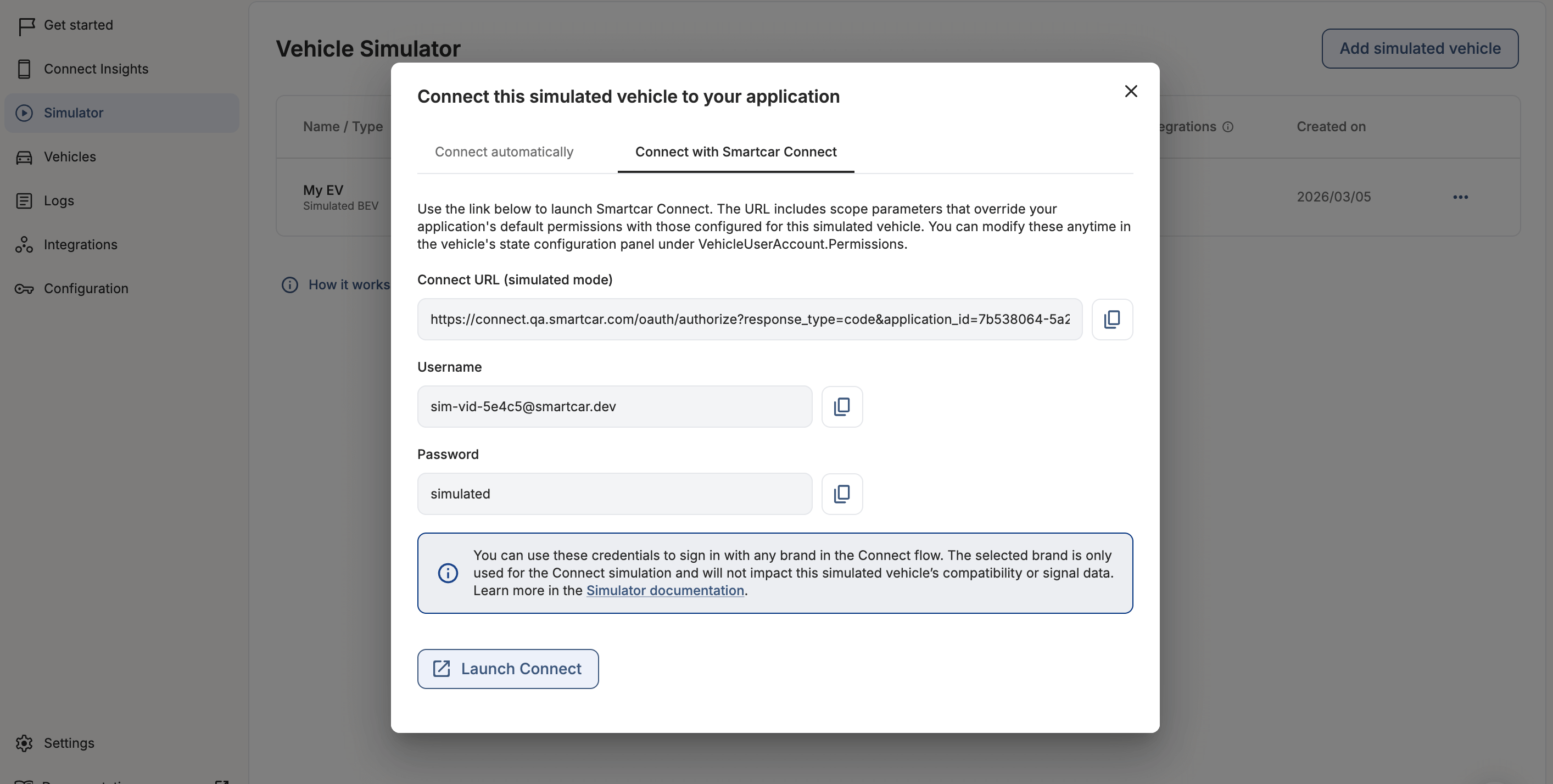
When connecting a simulated vehicle, you have two options depending on your testing needs; connecting automatically or simulating the vehicle owner experience using Smartcar Connect.Both options use the permissions configured in the simulated vehicle’s state under the signal VehicleUserAccount.Permissions, which will override any application-level permissions.
response_type=none, so it does not issue a per-vehicle access token; access the connected vehicle with your application-level (M2M) tokens. If you specifically need per-vehicle tokens, use response_type=code with a configured redirect URI.
After connecting through Smartcar Connect, the vehicle will display the selected brand in the dashboard and in all webhook payloads and API responses (in the vehicle.make field).
You can select any brand from the Connect flow brand select screen to authenticate the simulated vehicle with. The selected brand is only used for the Connect simulation and will not impact the simulated vehicle’s compatibility or simulation data.
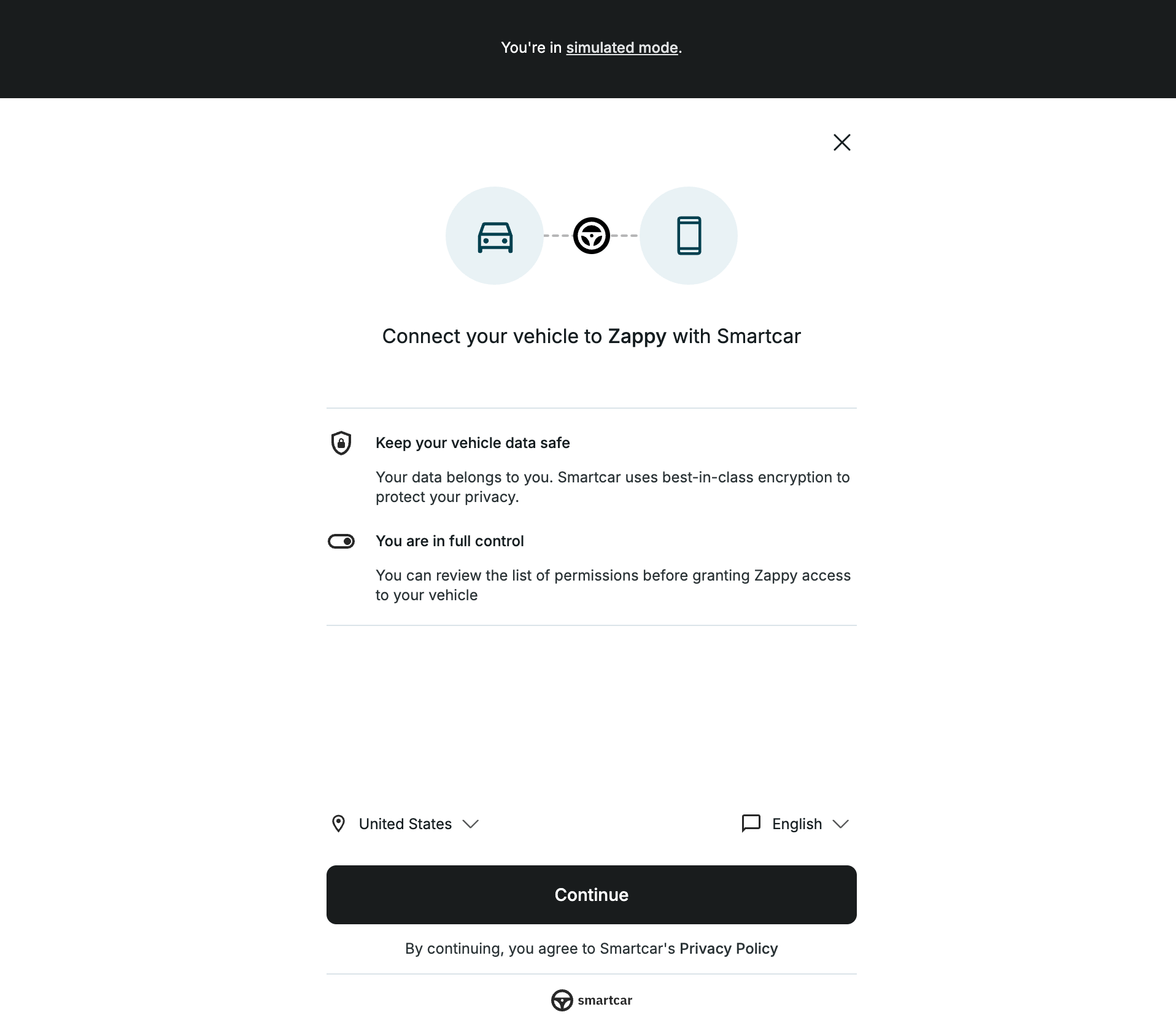
Disconnect a simulated vehicle
You can disconnect a simulated vehicle from any of these locations:- In the Vehicle Connections table
- In the Simulated Vehicles table
- Via the delete vehicle connection endpoint
Managing simulated vehicle connections
Manage simulated vehicle connections in the Vehicle Connections dashboard alongside live vehicles. Filter the table by mode to show simulated vehicles only. Vehicles from the legacy Simulator are marked with a ‘Legacy’ chip.Why was my simulated vehicle disconnected?If you didn’t disconnect the vehicle manually, a team member may have, or it may have been created in a disconnected state. Simulated vehicles can be disconnected via the API or Vehicle Connections dashboard, just like live vehicles.
Test additional Connect flows
Depending on your use case, some vehicles prompt the user for additional input during the Smartcar Connect authorization flow. Use the Simulator to test these scenarios.Test the VIN and odometer verification flow
In parts of Europe, some Volkswagen Group vehicle owners authenticate using their VIN and current odometer reading as an alternate to signing in with their connected services account.- Create a BEV or PHEV simulated vehicle and disable Connect automatically (or disconnect the vehicle once it’s been created).
- Open the Connect modal for the vehicle and select Connect manually via Smartcar Connect.
- Launch the Connect flow.
- In the Connect flow, select a European country.
- On the brand select screen, select one of the following brands: Audi, Cupra, Škoda, SEAT, or Volkswagen.
- Enter the VIN and odometer reading from the simulated vehicle’s Configuration screen in the dashboard.
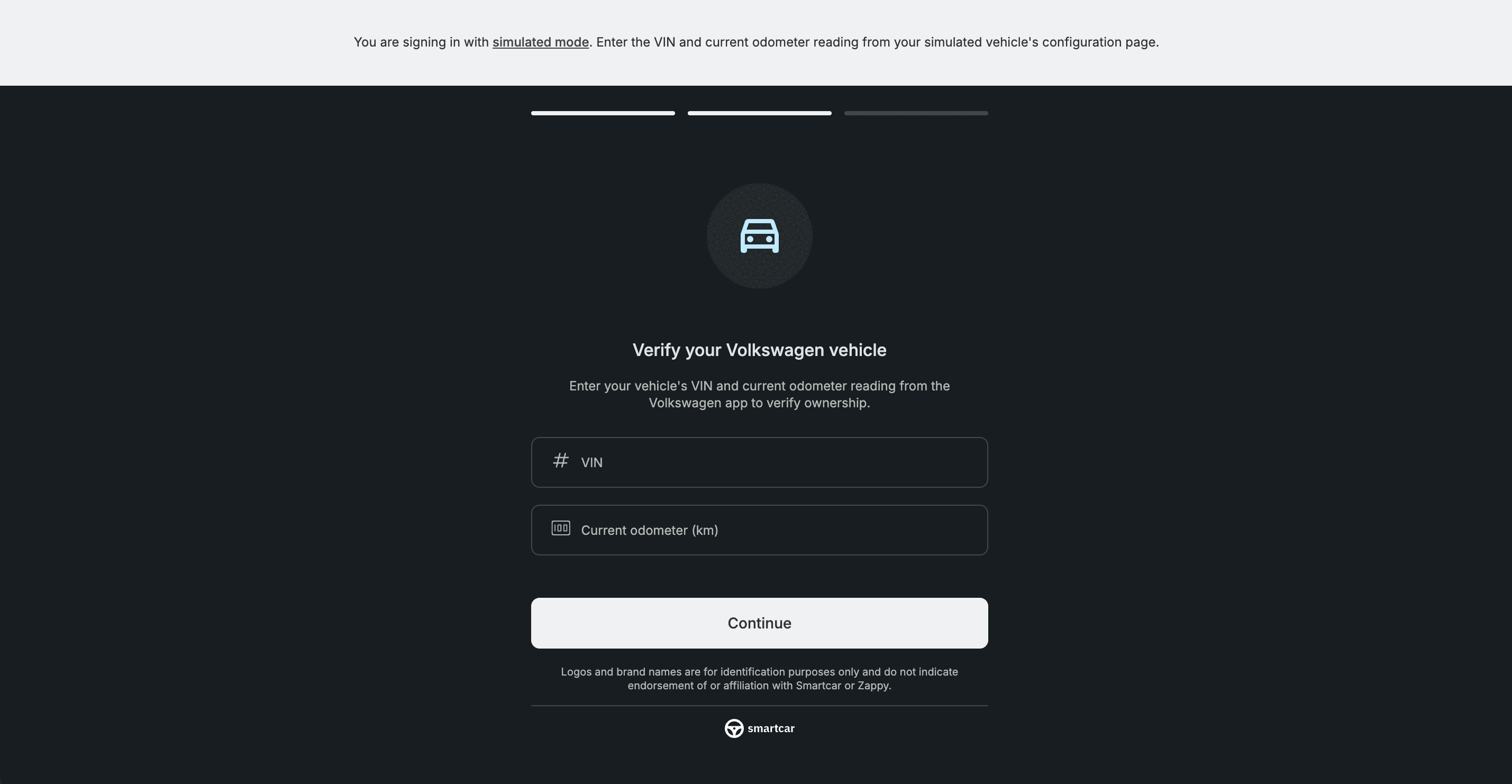
- Finish connecting the vehicle.
The VIN and odometer verification flow currently only applies to BEV and PHEV models for the following brands in the EU: Audi, Cupra, Škoda, SEAT, and Volkswagen.
Test the user-selected battery capacity flow
Some EVs report an undetermined battery capacity, prompting the vehicle owner to select their capacity during Connect.- Create a BEV simulated vehicle and disable Connect automatically (or disconnect the vehicle once it’s been created).
- In the simulated vehicle’s Configuration screen, open the
TractionBattery.NominalCapacitysignal’s edit modal. - Toggle on the prompt for battery capacity selection in Connect.
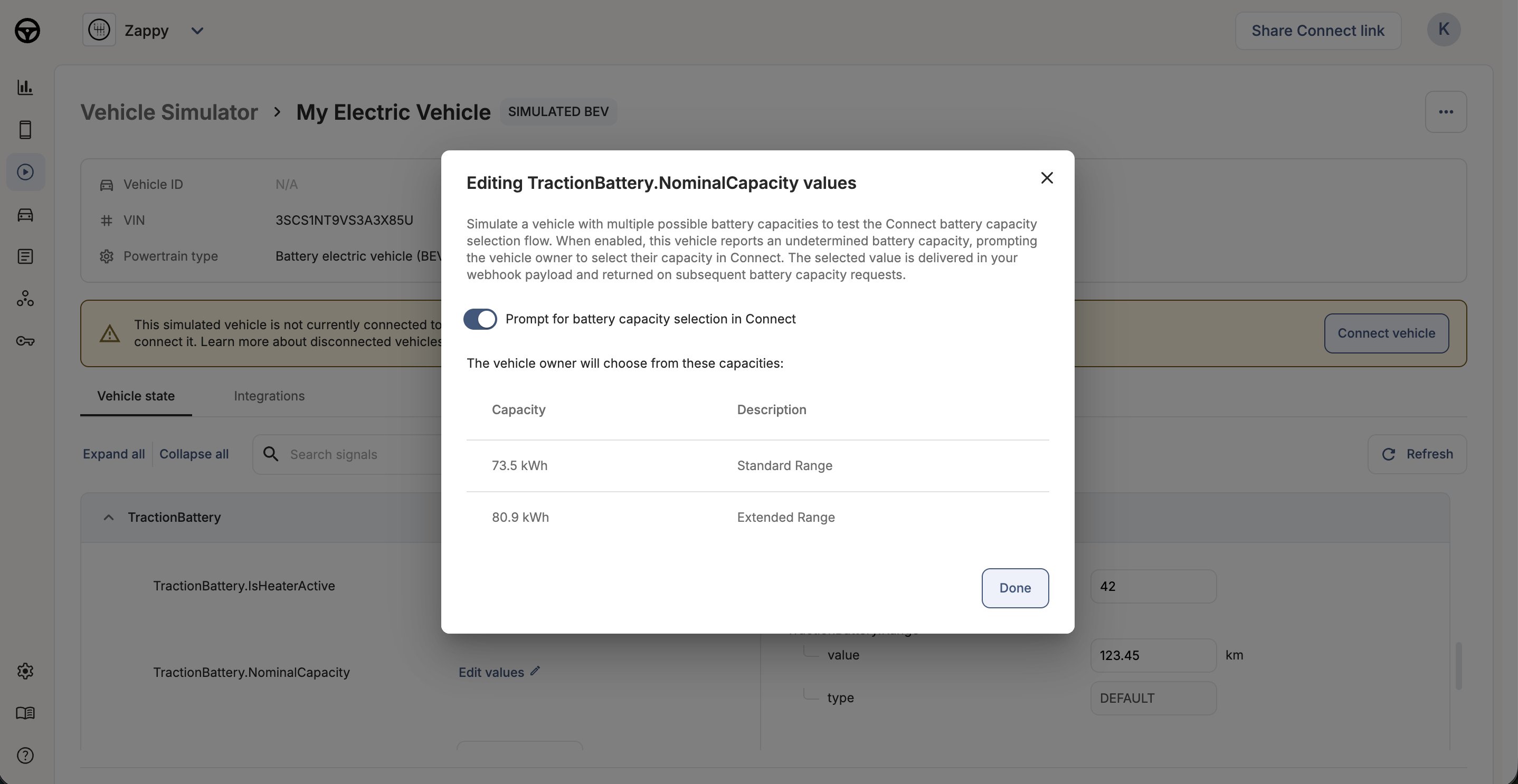
- Click Done, then publish the simulated vehicle’s modified signal configuration.
- Double check the vehicle is in a disconnected state, then launch the Connect flow.
- Complete the battery capacity selection flow, which is presented after the permissions grant screen in Connect.